
































Microphone Help
Your voice is the controller, so a microphone that is nearly right still ruins the game. Work down this page. The fixes are ordered from the most common problem to the least.

 1. The 30 Second Check
Four things fix most problems. Do them in order before trying anything else.
- Allow the microphone. Your browser asks once. If you dismissed it, click the padlock (or the crossed-out mic) in the address bar and set Microphone to Allow, then reload the page.
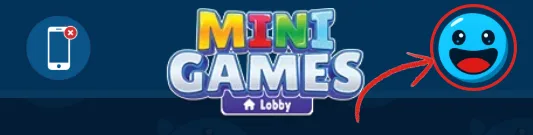
- Turn the mic on. The mic button at the top left of the page is green when it is listening and red when it is off. Click it to switch it on.
- Watch the Input level. Open the settings gear at the top right and talk. If the bars move, we can hear you and the problem is elsewhere on this page. If they stay flat, keep reading section 2.
- Check the hardware mute. Many headsets have a mute switch on the cable or a mute button on the ear cup, and many laptops have a mic mute key on the F-row. These silence the mic before the browser ever sees it.
2. The Game Cannot Hear Me At All
If the Input level bars never move, the audio is not reaching the browser. Common causes, most likely first:
- Another app is holding the microphone. Video calls are the usual culprit. Close Zoom, Teams, Discord, Meet or OBS completely, not just the window, then reload the page.
- Another browser tab is using it. A second Shout Out Games tab, or any tab with a call or recorder in it, can take the mic. Close the other tabs and reload.
- The wrong microphone is selected. Click the mic button in the header to see every microphone your device has, and pick the one you are actually speaking into. Read section 4 as well, because this one has a catch.
- Permission was blocked for the whole site. Being asked and clicking Block is remembered. Reset it from the padlock icon in the address bar.
- The page is not on a secure connection. Browsers only give microphone access to sites served over https. Make sure the address starts with https://shoutoutgames.com.
3. It Reacts To The Game, Not To Me
If the game triggers itself while nobody is speaking, your microphone is hearing your speakers. On an up-to-date desktop Chrome (version 135 or newer) the game's own audio is cancelled out of what the microphone hears before any word is recognised, so this should be rare. If it still happens, or you play in another browser such as Edge, Recognition Mode is the fix. You will find it in the settings gear at the top right.
- Slow. You talk only when the blue line prompts you. Pick this if your microphone picks up game audio and the cancellation is not enough, which can happen with loud laptop speakers or in browsers other than Chrome.
- Fast. You talk at any time, and the game responds sooner. On an up-to-date desktop Chrome this works through speakers too. In other browsers pick it only if your microphone does not pick up game audio: headphones, a headset, or a phone held close to your mouth.
Headphones remain the surest fix. With headphones on, nothing the game says can reach your microphone, so you can leave Fast on in any browser and get the quickest response the game can give.
4. I Picked A Different Mic And Nothing Changed
This one surprises people, so it is worth stating plainly. On an up-to-date desktop Chrome (version 135 or newer) the microphone you pick in our header is used for everything, including recognising words. In other browsers, Edge included, speech recognition always listens to your system default microphone: the picker only changes which microphone we measure loudness and pitch from, and it cannot override the browser's choice for recognising words.
So if you are not on a recent desktop Chrome and want a specific microphone to be used for speech, make it the default in your operating system:
- Windows. Settings, then System, then Sound. Under Input, choose your microphone and set it as the default device.
- macOS. System Settings, then Sound, then Input, and select your microphone.
- Android and iOS. The phone follows whatever is connected. Plug in or pair your headset before opening the game.
Reload the page after changing the default so the browser picks up the new device.
5. It Hears Me But Gets The Word Wrong
The bars move, the game reacts, but it keeps choosing the wrong answer. Things that genuinely help:
- Say the word on screen, on its own. "Blue" is recognised far more reliably than "erm, I think blue".
- Do not trail off. Short words spoken at a normal volume beat long words that fade at the end.
- Get closer, but not too close. Roughly a hand's width away is ideal. Speaking directly onto the mic distorts the sound and makes recognition worse, not better.
- Cut the background noise. Fans, TVs, and other people talking all compete with you. A quiet room measurably improves accuracy.
- Speak English. Our games are designed primarily for English-language input. Recognition accuracy varies with other languages and with strong accents.
6. Devices And Browsers
- Everything runs in the browser. There is nothing to download or install.
- You need a working microphone, an internet connection, and a site address starting with https.
- Desktop, laptop, tablet and phone all work. On a phone, headphones make the biggest difference because the speaker and the microphone are centimetres apart.
- If one browser refuses microphone access no matter what you try, test the same page in another browser. That tells you in seconds whether the problem is the browser or the device.
7. Still Stuck?
Tell us and we will help. It speeds things up enormously if you include your browser and version, your operating system, which microphone you are using, and whether the Input level bars move when you talk.
Message us from the contact page, or email [email protected]. You may also find your answer on the FAQ page.
Once it works, it really works. Thank you for playing at Shout Out Games!